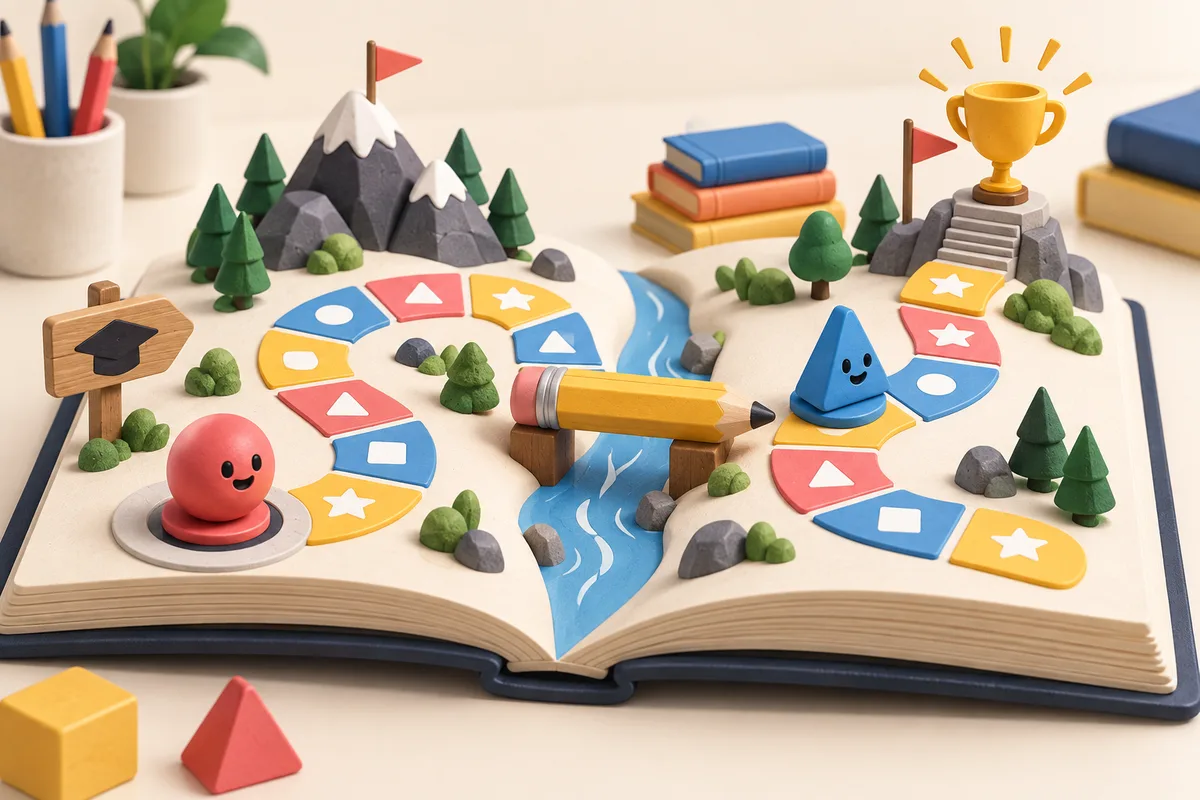
A classroom review game starts with a learning goal: recalling vocabulary, explaining a process, sorting examples, or finding a mistake. Choose the skill first, then build a short game around it. Points and a timer can help organize a round, but the questions and explanations do the teaching.
The simplest first version uses one computer and a shared screen. Students discuss answers in teams while the teacher runs the game. That avoids making a separate login or multiplayer connection part of the lesson.
Below are five game formats and prompts you can adapt in Instaplay. These are starting specifications, not demonstrations of tested games. Supply your own checked questions and play through the result before using it with a class.
Choose a format for the skill you want to review
| Format | Useful for | What students do |
|---|---|---|
| Team question board | Mixed-topic review | Choose a category and explain an answer |
| Put it in order | Sequences and processes | Arrange steps and justify their order |
| Find the mistake | Common misconceptions | Identify an error and correct it |
| Clue ladder | Vocabulary and concepts | Use progressively clearer clues |
| Sort and defend | Categories and examples | Place an item, then explain the choice |
Keep the first game to one format and a small question set. A clear ten-question activity is easier to check than a large game with several modes, special powers, and complicated scoring.
1. Team question board
Create a board with three categories and three questions per category. Teams choose a square, discuss the question, and give an answer. The teacher reveals the answer and explanation before awarding a point.
For a fractions review, categories could cover equivalent fractions, comparison, and word problems. The teacher decides whether an explanation is sufficient; the game does not need to judge free-form student answers.
Starting prompt:
Make a classroom review board for one shared screen. Include three categories with three question tiles each. Selecting a tile shows its question. Keep the answer hidden until the teacher presses Reveal answer. Show the explanation with the answer. Let the teacher award one point to either of two teams, then return to the board. Mark used tiles and end when all nine have been answered. Include a reset button. Use the question, answer, and explanation pairs I provide below; do not invent extra facts.
Paste your nine checked question sets after the prompt. If discussion matters more than speed, leave out the timer. If you use one, make it adjustable and let the teacher pause it.
2. Put it in order
Give students a short set of steps to arrange: stages in a process, events in a story, or steps in a worked calculation. Ask them to explain the sequence before revealing the answer.
Write the start and end conditions clearly. A cycle can have several valid starting points, and a historical topic may have simultaneous events. Avoid marking a defensible answer wrong because the question was ambiguous.
Starting prompt:
Make a sequencing game with four text cards per round. On a shared screen, let the teacher select a card and move it up or down with large buttons. Include Check order and Reveal explanation. Use the exact ordered sequences and explanations I supply. Give one point for a correct sequence, show the explanation, and advance only when the teacher chooses Next round. Include five rounds and a restart button.
Buttons provide an alternative to dragging. Keep the text short enough for students at the back of the room to read.
3. Find the mistake
Show a statement or a worked example containing one deliberate error. Teams identify the mistake and explain how to repair it. This format makes the discussion about reasoning rather than guessing a letter.
For example, a teacher-written arithmetic question might show “6 × 4 = 20.” The answer should explain the correction, not just reveal “24.” Match the examples to the class's current work.
Starting prompt:
Make a five-round Find the mistake classroom game. Each round displays one example I provide. Include a teacher-controlled Reveal correction button, followed by my explanation. Let the teacher award up to two points: one for identifying the error and one for explaining the correction. Do not automatically grade spoken answers. Show the team scores and a final results screen with Restart.
Check that every example has the intended error and that the correction is accurate. AI-generated subject matter still needs a teacher's review.
4. Clue ladder
Reveal clues one at a time until a team identifies the concept. For “evaporation,” a teacher might prepare clues about a change of state, liquid becoming gas, and a puddle drying. Adjust the wording to what students have learned.
Award three points after the first clue, two after the second, and one after the third. Give teams a fair answering order so shouting first does not decide the game.
Starting prompt:
Make a vocabulary clue game for two teams on one screen. Each word has three clues that the teacher reveals one at a time. Hide the word until Reveal answer is pressed. Show suggested points of three, two, or one based on clues revealed, but let the teacher confirm which team receives them. Use my words and clues. Alternate which team answers first, show a round counter, and include a final score and restart.
5. Sort and defend
Show an item and two or three categories. Students choose a category and explain why it fits. Examples might include shapes, parts of speech, or types of evidence.
Start with items that have one clear answer. If you want a discussion about ambiguous examples, explicitly make those teacher-led rounds rather than asking the game to declare one answer correct.
Starting prompt:
Make a sorting review game with three labeled categories. Display one item at a time. Let the teacher choose a category with a large button, then reveal my answer and explanation. Include a Skip for discussion button that advances without awarding points. Use my supplied items, categories, and explanations. After ten items, show a summary and Restart.
Check the game before the lesson
Play every question, including wrong answers and skipped rounds. Confirm that answer reveals work, points are awarded once, and restarting clears the previous score. Check the text from the distance students will view it, and try the actual computer, browser, projector, and network you plan to use.
Keep a copy of the questions outside the game so the activity can continue if the display or connection fails. Avoid a speed-based rule when the objective is thoughtful explanation, and make sure color is not the only way to distinguish categories or teams.
For help turning a specification into a first version, read how to make a game with AI. For additional mechanics to adapt, browse our game prompt examples. If you later want students to join from separate devices, plan and test that as a separate multiplayer setup using the multiplayer game walkthrough.
Build one short review round
Choose one format, supply a small set of checked questions, and test a complete round before adding more. The goal is a game that supports the lesson and is easy for the teacher to run.